
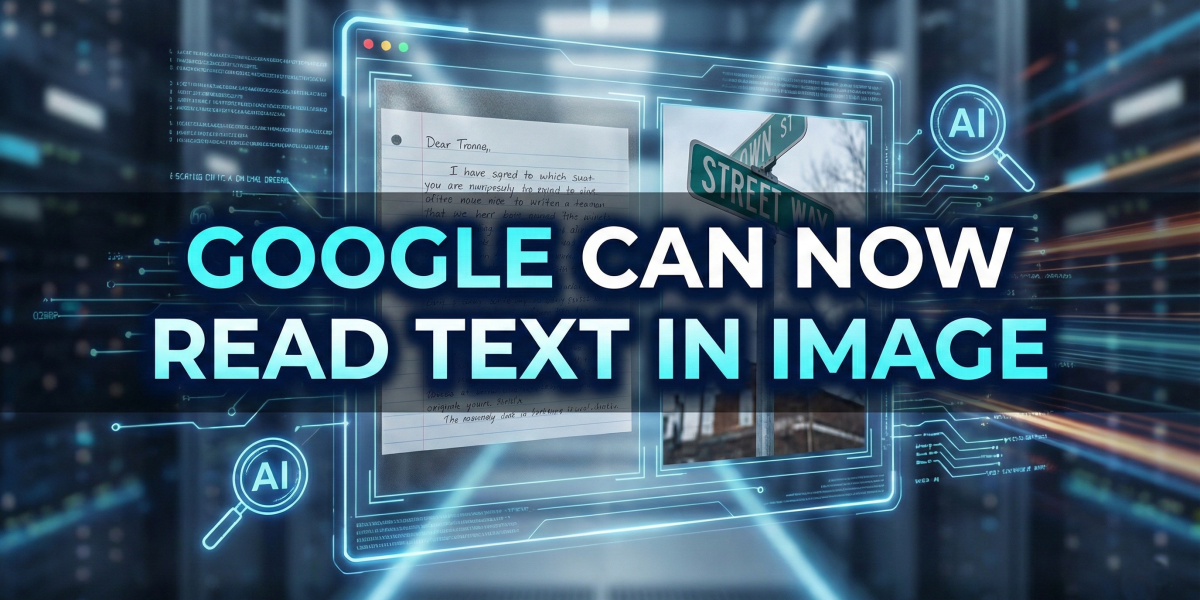
The Visual Revolution: Why Google "Reading" Your Images is the Biggest SEO Shift of 2026
Welcome to 2026, where the text locked inside your JPEGs and PNGs is no longer hidden from Google’s AI. Here is why the gap between images and words has finally closed.
For two decades, search engine optimisation (SEO) relied on a simple, somewhat frustrating rule: If it isn’t text, it doesn’t exist.
We spent years meticulously transcribing text from infographics, manually typing out restaurant menus for websites, and writing lengthy captions to explain what was happening in our photos. We did this because, to Google’s spiders, an image containing the cure for the common cold was indistinguishable from a picture of a cat. It was just a block of pixels.
That era is officially dead.
As we settle into 2026, we are witnessing the maturation of Google’s multimodal search capabilities. Powered by the Gemini architecture, Google has evolved from simply identifying objects (“this is a bicycle”) to fully reading and comprehending text embedded within images with near-human accuracy.
This isn’t just a cool feature for Google Lens users; it is a fundamental shift in how your content is indexed, ranked, and discovered. Here is the deep dive into what this means for your digital strategy.
The Tech: From OCR to Semantic Understanding
To understand the benefit, you must understand the upgrade. We aren’t dealing with the clunky Optical Character Recognition (OCR) of the 2010s.
Old Tech (OCR): Saw shapes and guessed letters. It could read “OPEN” on a sign but didn’t know what it meant.
New Tech (Multimodal AI): Reads the text and understands the context. If you upload a photo of a conference badge, Google identifies the name, the company, and the job title, and understands that this image establishes a professional entity.
5 Ways This Revolutionises Your SEO Strategy
This is where the rubber meets the road. Google reading images isn’t just about convenience; it opens up five massive opportunities for search visibility that previously didn’t exist.
1. Unlocking the “Infographic Trap”
Historically, infographics were great for backlinks but terrible for on-page SEO. The rich data inside them was invisible to search algorithms unless you duplicated it in the body text.
The 2026 Shift: Google now indexes the statistics, quotes, and data points inside your JPGs. If a user searches for a specific stat that only exists inside your chart, your image can now rank for that query.
Action: Audit your old visual assets. Ensure high-resolution versions are uploaded so Google can parse the fine print.
2. E-E-A-T Validation via Visual Proof
Google places immense weight on E-E-A-T (Experience, Expertise, Authoritativeness, and Trustworthiness).
The 2026 Shift: Google can now “read” credentials in background images. A photo of your team standing in front of a “2025 Industry Excellence Award” banner, or a certificate hanging on a wall in a clinic, is now processed as textual evidence of authority.
Action: Don’t use stock photos. Use authentic imagery containing text that validates your business’s legitimacy (certificates, branded signage, award plaques).
3. The “Product Packaging” Shortcut for E-Commerce
Listing technical specifications (SKUs, ingredients, compatibility) is tedious.
The 2026 Shift: If you upload a high-quality photo of the back of a product box, Google reads the ingredients list, the nutritional info, and the safety warnings directly from the packaging. It associates these keywords with your product page without you needing to clutter your product description with every single technical detail.
Action: Ensure your product galleries include clear, legible shots of packaging text, labels, and tags.
4. Local SEO and the “Menu Effect”
For local businesses (restaurants, salons, mechanics), this is a game-changer.
The 2026 Shift: When a user searches for “gluten-free pasta Liverpool,” Google can find that exact phrase inside a photo of a menu uploaded to your Google Business Profile three months ago—even if you never wrote “gluten-free” on your website.
Action: Encourage customers to upload photos of your price lists and menus. Google is mining this user-generated content for keywords.
5. Featured Snippets 2.0
We are seeing a rise in “Visual Snippets.”
The 2026 Shift: When a user asks a “How-to” question, Google is increasingly likely to surface an image where the answer is written in the image itself (e.g., a diagram with labelled parts), rather than a text paragraph.
Action: Create diagrams where the labels clearly answer common user questions.
The “Safety” Warning: Don’t Get Lazy
With great power comes the temptation to cut corners. You might be thinking, “Great! I don’t need to write text content anymore; I’ll just upload flyers!”
Do not do this.
While Google can read image text, standard HTML text remains the “native language” of the web. It is faster to load, easier to parse, and absolutely essential for accessibility tools.
Your Golden Rule for 2026: Use image text to supplement and verify your main content, not to replace it.
Do: Upload a photo of your event flyer.
Do: Ensure the key details (Date, Time, Location) are also written in the text on the page.
Why? Because if the image fails to load, or the user is visually impaired using a screen reader, your message is lost. Plus, HTML text still carries slightly more “weight” in ranking algorithms.
The Web Just Got High-Definition
The barrier between visual and textual information has dissolved. For SEOs and content creators, this means every pixel on your website is now an opportunity to rank.
Your images are no longer just decoration; they are data. Treat them that way.
Quantum SEO Image Audit Checklist
1. The Legibility & Quality Check
Resolution is sufficient: Is the image high-resolution enough that the text does not pixelate when zoomed in? (Google recommends at least 1600px wide for comprehensive indexing).
High Contrast: Is there strong contrast between the text colour and the background? (e.g., Avoid light grey text on a white background).
Standard Fonts: Are you using legible fonts for critical data? (Script or handwritten fonts are harder for AI to parse with 100% confidence).
No Obstructed Text: Ensure watermarks or other design elements do not overlap critical keywords or numbers.
2. The Content Redundancy Check
The “Copy-Paste” Rule: Is the most critical information in the image (e.g., a price, a date, a product spec) also written in plain HTML text near the image?
Introduction Check: Does the text immediately preceding the image provide context? (e.g., “As seen in the chart below, our revenue grew by…”)
Mobile Visibility: On a mobile screen, is the text in the image still large enough to be read without excessive pinching and zooming?
3. The “E-E-A-T” & Authority Check
Credential Visibility: Do you have high-quality photos of your certificates, awards, or diplomas where the text on them is readable?
Signage Validation: For local SEO, do you have photos of your exterior signage or branded vehicles where your business name and phone number are clearly visible?
Menu/Pricing Lists: Are photos of physical menus or price lists current? (Google may read an old photo and show users outdated prices).
4. The Technical & Accessibility Check
Alt Text is Present: Does every image have descriptive Alt Text? (Even if Google can read the image, Alt Text is the fallback and essential for screen readers).
Filename Keywords: Is the file name descriptive? (e.g.,
2025-annual-revenue-chart.jpgrather thanIMG_9921.jpg).Structured Data (Schema): If the image is a product or an event, are you using Schema markup to explicitly tell Google what the image represents?
5. The “Vision” Test
Run the “Lens Test”: Pick your top 3 most important images. Right-click them in Chrome and choose “Search image with Google”. Can you highlight and copy the text in the side panel?
Check Indexing: Perform a
site:search for a unique phrase found only inside your image to see if Google has indexed it.
Image Schema – The Final Touch
If Google reading your image is like a human looking at a jar of jam and guessing the flavour, Schema Markup is like slapping a big, verified label on the jar that says: “This is 100% Organic Strawberry Jam.”
It removes the guesswork.
What is Schema Markup?
Schema Markup (or Structured Data) is invisible code you put on your website that speaks directly to Google’s bots. It doesn’t appear on the visual page for humans, but it strictly defines what an image is and what text it contains.
Why use it if Google can already “read” images?
Because Google works on probability.
Without Schema: Google thinks: “I am 85% sure this image contains a price list for ‘Botox’ services.”
With Schema: Google thinks: “The code explicitly states this is a price list for ‘Botox’. Confidence is now 100%.”
Higher confidence = Higher ranking potential.
The 3 Key Schema Strategies for Text-Heavy Images
Here is how to apply this in 2026. You generally use the ImageObject schema type.
1. The “Transcript” Method (For Infographics)
If you have a chart or infographic, use the description or caption field in your Schema to provide a full transcript of the text inside the image.
JSON:
<script type=”application/ld+json”>
{
“@context”: “https://schema.org/”,
“@type”: “ImageObject”,
“contentUrl”: “https://www.yourwebsite.com/images/2026-revenue-chart.jpg”,
“name”: “2026 Q1 Revenue Report”,
“description”: “Bar chart showing Q1 revenue growth. January: £10k, February: £15k, March: £22k. Total growth is 120%.”,
“creator”: {
“@type”: “Organization”,
“name”: “Your Company Name”
}
}
</script>
2. The “Product” Method (For Packaging)
If your image is a product, don’t just use ImageObject. Nest it inside a Product schema. This connects the text on the packaging (like “Gluten-Free”) directly to the product’s sellable entities.
The Strategy:
Property:
audienceorcategoryValue: If the box says “For Sensitive Skin,” you explicitly add
"audience": "Sensitive Skin"in your product schema.
3. The “Bleeding Edge” Property (2026 Pro Tip)
There is a newer, specific property called embeddedTextCaption (or sometimes just handled via caption in simpler implementations) that specifically denotes text burned into the media.
Using this tells Google: “The text in this field is literally what is written in the pixels.”
How to Implement This (The Easy Way)
You do not need to be a coder to do this.
Use a Generator: Search for a “Schema Markup Generator” tool (there are many free ones online).
Select “ImageObject”: or “Product” depending on the image.
Fill in the blanks: Paste your image URL and type out the text from the image into the “Description” field.
Copy & Paste: The tool will give you a block of code (like the example above). Paste this into the
<head>section of your website’s HTML, or use a plugin if you are on WordPress.
Summary Checklist
Infographics: Does the Schema
descriptionmatch the text in the chart?Menus: Is the menu image nested inside
MenuorRestaurantschema?Certificates: Is your award image tagged with
name: “Industry Excellence Award 2025”?
One final thought: If you are doing this for a local business (like a restaurant or clinic), this is incredibly powerful. It helps you rank for specific menu items or services without cluttering your beautiful homepage with text.
Author Profile
Nadeem Ansari FCIM F IDM (Camb.) is a seasoned marketing professional with more than three decades of experience, specialising in integrated digital strategies. Nadeem holds an MBA in Marketing and fellowships with leading professional bodies. His expertise covers SEO, PPC, and data-driven marketing.
He is the known as the global pioneer of Quantum SEO.
For personalised consultation and digital marketing strategy development, contact Nadeem Ansari FCIM F IDM (Camb.) via DoLocal UK. https://dolocal.co.uk/team/nadeem-ansari/
